How to Turn On or Off Device Encryption in Windows 10
《哈姆雷特》中的经典台词‘To be or not to be’,至今仍被广泛引用。 #生活知识# #文学名著#
How to Turn On or Off Device Encryption in Windows 10
Device encryption (aka: BitLocker automatic device encryption) helps protect your data, and it's available on a wide range of Windows devices. If you turn on device encryption, the data on your device can only be accessed by people who've been authorized. If device encryption isn't available on your device, you may be able to turn on standard BitLocker encryption instead.
Device encryption is available on supported devices (ex: tablet or 2-in-1 laptop) running any Windows 10 edition. If you want to use standard BitLocker encryption instead, it is only available on supported devices running Windows 10 Pro, Enterprise, or Education. Some devices have both types of encryption. BitLocker is not available on Windows 10 Home edition.
Device encryption requirements:
Trusted Platform Module (TPM) version 2.0 or higher, and TPM enabled in UEFI/BIOS settings.Modern Standby support.Motherboard firmware set for Unified Extensible Firmware Interface (UEFI), and not Legacy BIOS.See also:
Device encryption in Windows 10 | Windows SupportTurn on device encryption | Windows SupportAutomatic Windows Device Encryption/BitLocker on Dell SystemsHP PCs - Using BitLocker Drive Encryption (Windows 10)BitLocker drive encryption in Windows 10 for OEMs | Microsoft Docs
This tutorial will show you how to turn on or off device encryption in Windows 10.
You must be signed in as an administrator to turn on or off device encryption
Contents
Option One: Turn On Device Encryption in Windows 10Option Two: Turn Off Device Encryption in Windows 10
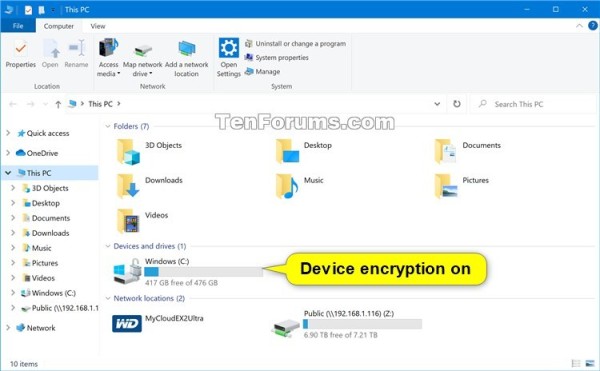
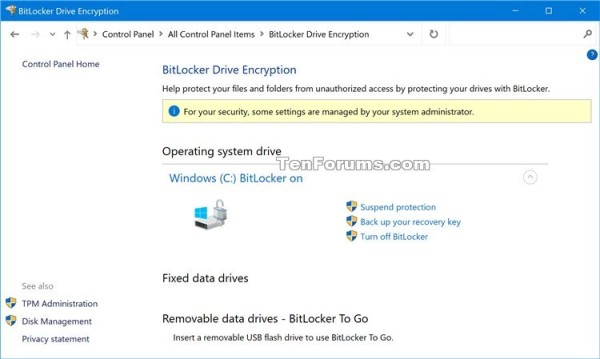
EXAMPLE: Device encryption turned on:
OPTION ONE
Turn On Device Encryption in Windows 10
This is the default setting.
1 Device encryption uses XTS-AES 128-bit BitLocker encryption method and cipher strength by default in Windows 10. If you would like to use a stronger XTS-AES 256-bit BitLocker encryption method and cipher strength, then you will need to change the BitLocker encryption method and cipher strength before turning on device encryption.
If device encryption is already turned on, then you would need to turn off device encryption, change the BitLocker encryption method and cipher strength, and then turn on device encryption.
2 Open Settings, and click/tap on the Update & Security icon.
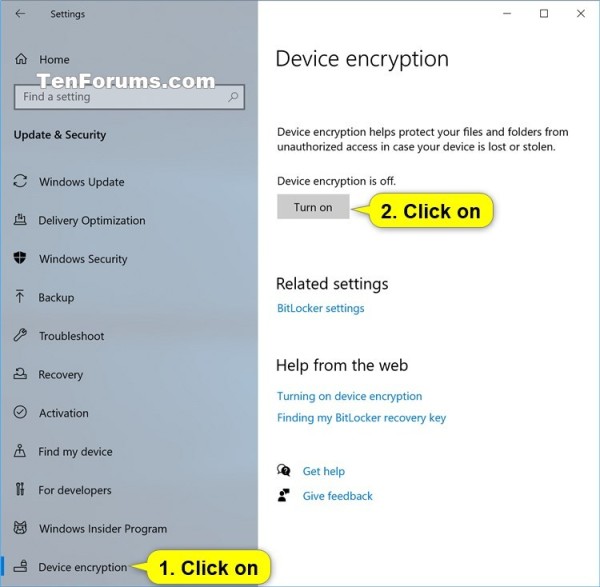
3 Click/tap on Device encryption on the left side, and click/tap on the Turn on button on the right side. (see screenshot below)
If you do not have a Device encryption settings page, then your PC doesn't support device encryption.
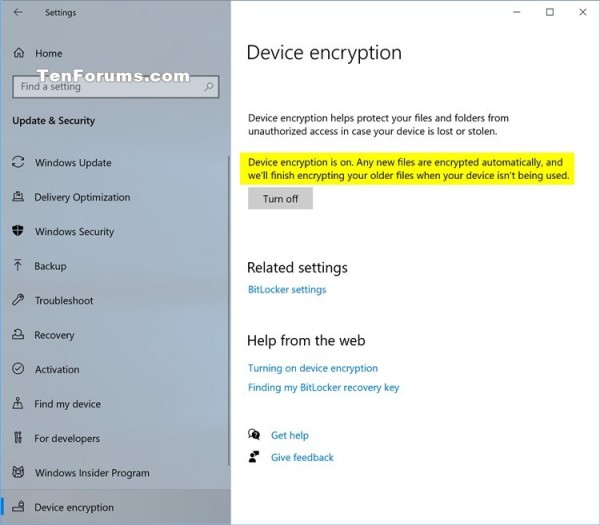
4 Device encryption is now turned on. Any new files are encrypted automatically, and this will finish encrypting your older files when your device isn't being used. (see screenshot below)
5 When finished, you can close Settings if you like.
6 It is highly recommended that you now backup the BitLocker recovery key used for Device Encryption. You will need to know this BitLocker recover key if you should ever be prompted for it to gain access to your Windows drive.
OPTION TWO
Turn Off Device Encryption in Windows 10
1 Open Settings, and click/tap on the Update & Security icon.
2 Click/tap on Device encryption on the left side, and click/tap on the Turn off button on the right side. (see screenshot below)
If you do not have a Device encryption settings page, then your PC doesn't support device encryption.
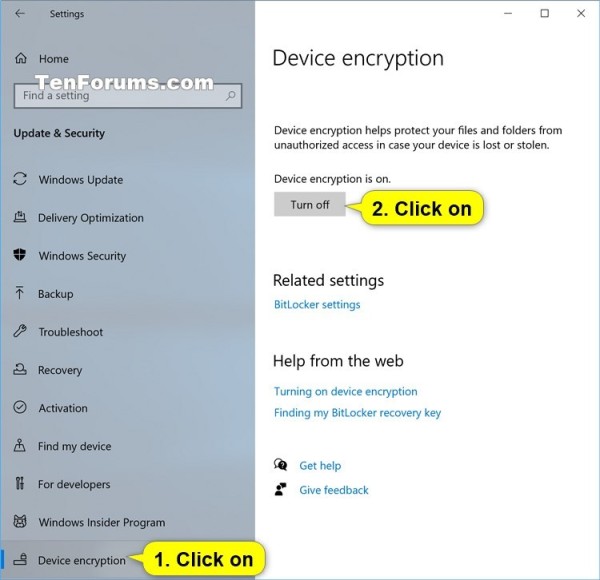
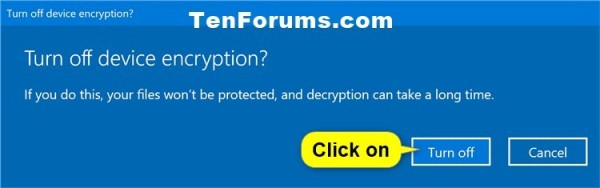
3 Click/tap on Turn off to confirm. (see screenshot below)
4 Your device will now start decrypting. This may take a while to finish, but you can keep using your device.
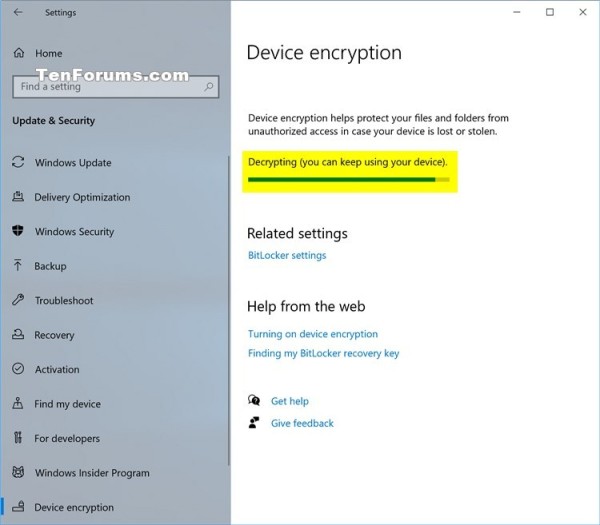
5 When finished, you can close Settings if you like.
That's it,
Shawn Brink
Related Tutorials
How to Check if Device Encryption is Supported in Windows 10How to Turn On or Off Device Encryption for your Windows 10 Mobile PhoneHow to Turn On or Off BitLocker for Operating System Drive in Windows 10How to Set Default BitLocker Encryption Method and Cipher Strength in Windows 10How to Backup BitLocker Recovery Key for Drive in Windows 10
Windows 11 Tutorials
网址:How to Turn On or Off Device Encryption in Windows 10 https://c.klqsh.com/news/view/257887
相关内容
Turn Bluetooth on or off in Windows4 Ways To Turn On Or Off Bluetooth In Windows 11
Turn On or Off Bluetooth in Windows 11
How to set up Dual Monitors on Windows 11/10
Enable Virtualization on Windows
How to get help in Windows
How to Change Taskbar Colour in Windows 11: A Step
How To Get Help In Windows 11 (All Methods)
Ways to install Windows 11
How do I turn off the option “Related Content from the Web” whenever I prompt an image in Bing?
随便看看
- 全5册孩子你是在为自己努力高效学习法给孩子的本学习方法书为你自己读书解决成长困惑正面管教青春期少年励志儿童读物家庭教育
- 《笨海盗日记套装(4册) 天降海盗杯+寻找不归岛+囧闯厄运岛+惊险明星路艾米斯帕克斯中小学生课外阅读书籍冒险幽默搞笑励志儿童读物【正版包邮】》 【简介
- 《孩子你是在为自己努力+夸孩子我有1000句全2册 唤醒孩子内驱力正面管教孩子从厌学到卓越解决成长困惑非暴力沟通赞美表扬真诚夸人鼓励育儿书青春期少年励志儿童读物家庭教育正版书籍》 【简介
- 《孩子你是在为自己努力+孩子为你自己读书全2册 唤醒孩子内驱力正面管教孩子从厌学到卓越解决成长困惑青春期少年励志儿童读物家庭教育正版书籍》 【简介
- 章子怡称女儿醒醒是宋雨琦忠实粉丝,也会担心我的打戏会不会很苦
最新乐趣
- 田曦薇嫁金钗君黛锋芒外露,韩辽吐槽一针见血
- lisa近期的舞台妆造,很是大胆!
- 好神奇啊!2018年那年的两个冠军就这样产生了交集,还一起约球
- 卧槽又帅又萌我真的要疯了
- 两京十五日站内热度破10219,成毅主演桃独播剧第一
- 一代人有一代人的爱 ,可以不接受,但要理解
- 太豪了导师,你敢跳这么一段我都不敢看
- 锤爆这个叨叨
- 恭喜成毅获得2026微博国际文化交流之夜年度榜样演员!
- 侯明昊说脸谱是跟制片人争取的
热点乐趣
- 89939
- 78448
- 64335
- 60522
- 39900
- 35973
- 32704
- 23148
- 22841
- 21694