DualShock Calibration GUI
Calibrate your PlayStation controller sticks
Please connect a DualShock 4, a DualSense or DualSense Edge controller to your computer via USB cable and press Connect.
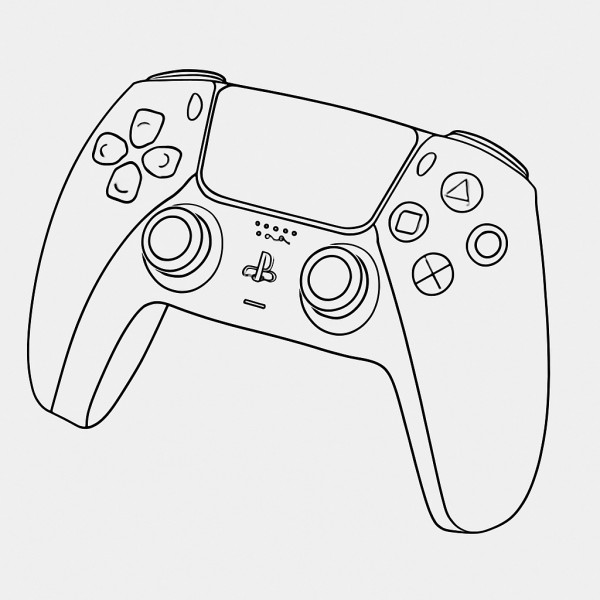
DualShock Calibration GUI - Professional Controller Calibration
DualShock Calibration GUI is a web-based tool that uses undocumented USB commands to recalibrate PlayStation controller analog sticks at a factory level with the DualShock Calibration GUI interface.
Factory-Level Calibration
Access the same calibration commands used during controller manufacturing to fix stick drift and improve accuracy.
Multiple Controller Support
Works with DualShock 4 (V1 & V2), DualSense, DualSense Edge, and VR2 controllers via USB connection.
Permanent Changes
Save calibration directly to controller firmware, ensuring it works across all connected devices.
Key Features
Professional-grade calibration tools for PlayStation controllers.
Stick Center Calibration
Precisely calibrate the neutral position of analog sticks to eliminate dead zones and drift.
Range Calibration
Calibrate the full range of motion for both sticks, ensuring accurate response across all positions.
Clone Detection
Automatically detect counterfeit DualShock 4 controllers that cannot be calibrated.
Real-time Visualization
See your stick positions in real-time with circularity testing and accuracy measurements.
Quick Test
Run through comprehensive tests to verify your controller's buttons, sticks, triggers, speaker, lights, and more.
Controller Information
View detailed hardware and firmware information about your connected controller.
Open Source Project
Community-driven development with full source code available on GitHub.
How to Use DualShock Calibration GUI
Use DualShock Calibration GUI to calibrate your PlayStation controller in simple steps:
FAQ
Frequently Asked Questions
Common questions about using DualShock Calibration GUI for controller calibration.
1
Does this fix stick drift?
Stick drift is usually caused by physical wear or dirt. DualShock Calibration GUI can help recalibrate after replacing worn joysticks, but won't fix physical damage. DualShock Calibration GUI is best for improving accuracy and fixing poor factory calibration.
2
Which controllers are supported?
DualShock Calibration GUI supports DualShock 4 (V1 and V2), DualSense, DualSense Edge, and VR2 controllers. Controllers must be connected via USB cable - Bluetooth connections are not supported when using DualShock Calibration GUI.
3
Are the changes permanent?
Yes, when you click 'Save changes permanently', the calibration is written directly to the controller's firmware. The calibration will persist across all devices including PS4/PS5 consoles.
4
Is this safe for my controller?
Yes, DualShock Calibration GUI uses the same calibration commands used during manufacturing. You can use DualShock Calibration GUI to recalibrate multiple times without damaging your controller.
5
Why does my browser need to support WebHID?
WebHID API allows web applications to communicate directly with USB devices. Currently, Chrome and Edge browsers support this feature. Firefox and Safari do not yet support WebHID.
6
Can I reset to factory calibration?
No, once you save a permanent calibration, you cannot revert to the original factory settings. However, you can perform a new calibration at any time to overwrite the previous one.
Guides & Resources
Helpful guides and resources for PlayStation controller users.
Ready to Use DualShock Calibration GUI?
Connect your controller and start using DualShock Calibration GUI now.
网址:DualShock Calibration GUI https://c.klqsh.com/news/view/356793
相关内容
在台式电脑上安装 SteamOS – 分步 GUI 指南(带有可选的 CLI)How to find file in Linux
Steamcommunity 302 Ver.14.0.01 – Dogfight360
Netease云音乐无损解析工具
1.20.1/1.21.1 最新版背包使用指南
情深深雨蒙蒙 歌词
冶金灌注机 (Metallurgic Infuser)
自定义附魔台 (Enchantment Custom Table)
檀健次新剧揭露人性阴暗面引发热议
家庭和谐的布局艺术与风水智慧
随便看看
最新乐趣
- 郑业成古装侧颜,黑色发带尽显江湖味
- 张哲华余红旧事上演人撵狗名场面
- 电影频道今晚首播得闲谨制,肖战化身抗战勇士
- 大爷最后那眼神感觉把兰香全身舔个遍了
- 凌霄搁国内工作,在气头上陈婷,见尖尖打电话摔手机
- 三分钟团灭十四人,这才是顶级安保!
- 王凯宋制红袍朝堂戏,神态气场演绎沉静锋芒
- 前跳水名将写小说曝光队内霸凌:被扇巴掌被栽赃 只有张家齐不欺负我
- 陈婉珍一家中秋团聚,何超莲晒出豪宅花园:巨型月亮灯、葫芦泳池
- 高叶表示《神探》剧组国庆聚餐,买单的事情都交给张译,原因搞笑
热点乐趣
- 89620
- 77872
- 64170
- 60189
- 39764
- 35619
- 32276
- 22669
- 22462
- 21407